Wired Gaming Headset w/ Mic: Easy Setup, Clear Chat
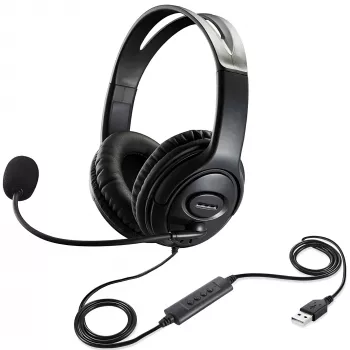
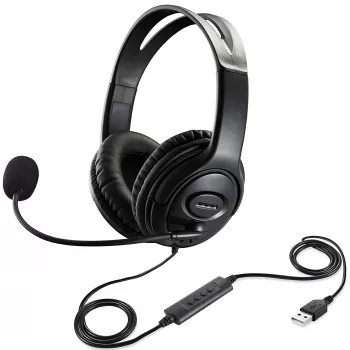
Wired Gaming Headset with Microphone: Clear Chat, Simple Setup, Reliable Sound
A wired gaming headset keeps audio and voice chat steady without worrying about charging, wireless dropouts, or pairing issues. For everyday gaming—party chat, co-op sessions, classes, or late-night calls—a simple cable connection can be the easiest way to get consistent sound and dependable mic performance. Below are the practical things that matter most: compatibility, comfort, mic clarity, and quick audio tuning. You’ll also find an in-stock wired pick for a straightforward plug-in setup.
What a Wired Headset Does Best for Gaming
- Instant connection for game audio and chat—no pairing steps, no battery management, and no waiting for firmware updates to finish.
- Lower risk of interference compared to wireless, which can be noticeable in busy Wi‑Fi environments or apartments with many nearby networks.
- Simple troubleshooting: most problems come down to port selection, in-line mute switches, or a quick audio setting change.
- Reliable voice quality for shared spaces where clear microphone pickup matters for calls, ranked play, and team communication.
Quick Compatibility Check (PC, Console, Mobile)
Before buying, take ten seconds to match the headset plug to the device you’ll use most. Many wired gaming headsets use a 3.5 mm connector, but the details of your ports still matter—especially on desktop PCs.
- Check the connector type: a single 3.5 mm TRRS plug supports both audio + mic on combo jacks and most controllers.
- Desktop PCs may need a splitter: if the computer has separate headphone and microphone ports, a TRRS-to-dual-TRS splitter is often required.
- Console setup is usually easiest via controller: plug into the controller headset jack, then confirm input/output devices in the console’s audio menu.
- If the mic works but sounds weak or noisy: check OS/console input level, mic boost, and disable any aggressive “audio enhancements” that add distortion.
| Device | Most common hookup | What to verify |
|---|---|---|
| Gaming PC (laptop) | Single combo audio jack | Input device set to headset mic; mute switch off |
| Gaming PC (desktop) | Separate headphone + mic ports | Use splitter if needed; pick the correct input in sound settings |
| PlayStation / Xbox (via controller) | Controller headset jack | Console voice chat output/input assigned correctly |
| Mobile / Tablet | 3.5 mm or adapter | Adapter supports mic (not audio-only) |
For deeper platform-specific guidance, these support pages can help pinpoint setting conflicts: Microsoft’s Windows audio troubleshooting, Discord’s voice and video troubleshooting, and PlayStation’s PS5 audio settings guide.
Comfort and Fit for Longer Sessions
Even excellent audio gets old fast if a headset pinches or overheats. Comfort is mostly about pressure distribution, cushion feel, and how the cable sits while you move.
- Headband pressure: a secure fit prevents slipping, but too much clamp force causes fatigue. A balanced feel across the top of the head is the goal.
- Ear cushions: softer pads usually stay comfortable longer; breathable materials help reduce heat buildup during long matches.
- Weight and cable pull: lighter designs and smart cable routing reduce neck strain. A simple trick is running the cable behind the desk to prevent tugging.
- Glasses comfort: if you wear glasses, look for cushions that don’t pinch the temples and can maintain a seal without excessive pressure.
Microphone Quality: What Actually Improves Clarity
Clear voice chat is less about “broadcast” marketing claims and more about placement, background noise control, and not fighting your own settings.
Simple Audio Tuning for Better Footsteps and Less Harshness
In-Stock Picks for a Simple Setup
- Wired Gaming Headset with Microphone ($16.51) — an easy plug-in choice designed for game audio plus voice chat, with no charging or pairing required.
- Portable Folding Camping Table ($73.51) — useful as a compact, movable surface for a laptop/console setup when desk space is limited.
- 60-Inch Wall-Mounted Electric Fireplace Heater with App Control & Remote ($402.01) — a cozy add-on for a dedicated game room where comfort matters during long sessions.
| Feature | Wired | Wireless |
|---|---|---|
| Setup | Plug in and select the device | Pairing + dongle/Bluetooth + settings |
| Power | No charging | Battery required |
| Stability | Very consistent | Can vary with interference/range |
| Cable | Managed cable needed | No cable to the device |
Fast Troubleshooting Cheatsheet
| Problem | Likely cause | Quick fix |
|---|---|---|
| Mic not working | Wrong input selected / muted | Select headset mic in system settings; toggle mute switch; re-plug |
| Teammates hear echo | Audio leaking into mic | Lower headset volume; move mic closer; enable echo cancellation in chat app |
| Only one ear has sound | Plug not fully seated / damaged jack | Push plug in firmly; test another port/device |
| Sound is very quiet | Low app volume / low input gain | Check mixer volumes; raise input level; avoid excessive mic boost distortion |
FAQ
Will a wired gaming headset work on both PC and console?
Usually, yes, as long as the plug matches the port. Consoles commonly work through the controller’s headset jack, while desktop PCs with separate mic and headphone jacks may need a splitter and the correct input/output selection in settings.
How can microphone echo be reduced during voice chat?
Lower the headset volume, move the mic closer to your mouth, and enable echo/noise suppression in your chat app. Avoid using external speakers during voice chat to prevent sound bleeding back into the mic.
Why does the microphone sound quiet or muffled?
Check that the correct input device is selected and raise the input level until normal speech is clear without clipping. Reposition the mic closer to the corner of your mouth and disable audio enhancements that cause distortion or muffling.













Leave a comment